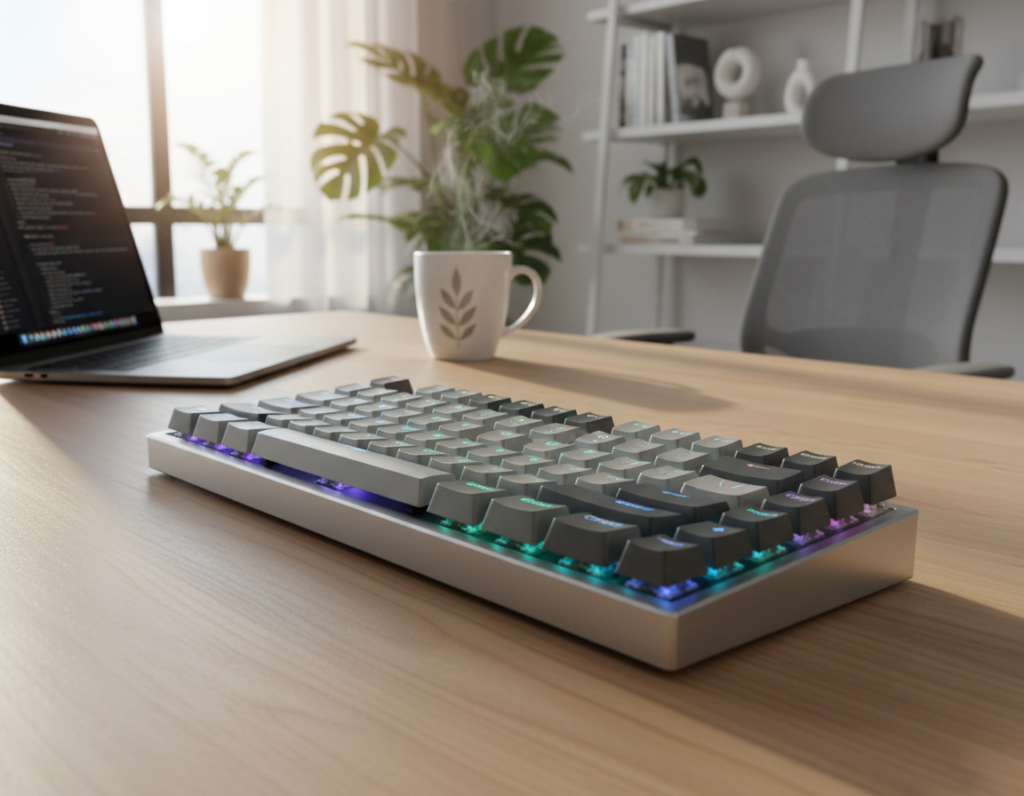
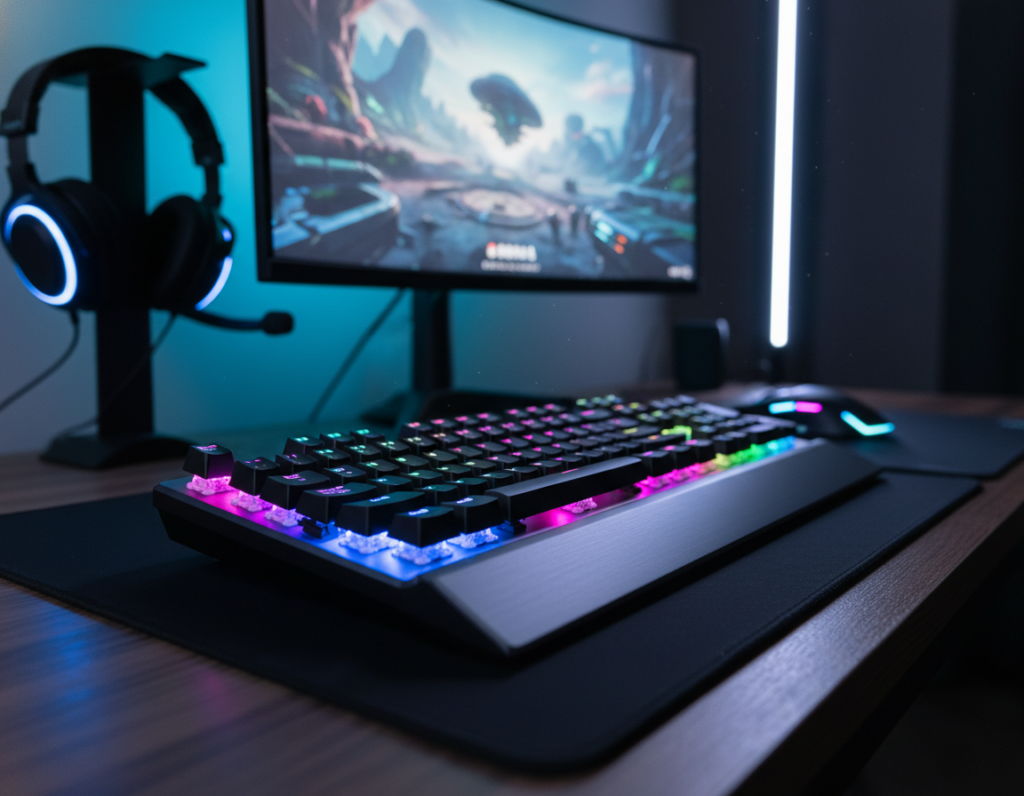
This guide helps US readers reclaim valuable workspace by swapping full-width models for compact layouts that free inches for a mouse, notebooks, and accessories.
Many people in apartments, dorms, and tight home offices felt cramped when a full layout dominated their table. Switching to 60%, 65%, 75%, or TKL-style units opened room and improved comfort.
What to expect: a clear product roundup showing which sizes fit common dimensions, plus picks for tight budgets and a featured 75% choice for balanced utility.
The article frames the problem of building a small desk mechanical keyboard setup that feels open and efficient for work or gaming. Later sections cover form factor, switch type, wired vs wireless, build quality, and cable management.
Read on to learn which compact mechanical models match your desk, budget, and daily habits so you get more usable desk space without clutter.
Why Small Desk Setups Feel Cramped With Full-Size Keyboards
A full-width, 100% board can gobble the center of your workspace quickly. It leaves little lateral room for a mouse and forces you to reposition notes or a drink. That loss of usable width creates constant friction during day-to-day use.
How a bulky 100% keyboard eats up desk width and mouse room
On narrow desks the mouse often bumps the board’s edge. Gamers report reduced sweep distance, and office users lose wrist space. This pushes the mouse hand outward and can cause awkward posture and shoulder strain over time.
Who benefits most: students, city apartments, dorms, and home offices
Who gains the most:
- Students in dorms or shared rooms
- City-apartment residents with narrow desks
- Anyone building a compact home office
The simplest way to open a cramped workspace is to reclaim width — remove what you rarely use and keep the rest.
Bottom line: Downsizing the board often gives immediate gains in comfort and utility. Compact layouts reduce footprint while preserving keys most people need, which leads into the next section on form factors that save space without removing useful functionality.
Compact Mechanical Keyboard Form Factors That Save Space Without Sacrificing Utility
Choosing the right form factor helps you free up usable space while keeping everyday keys close at hand. Below are three popular compact layouts and how they map to common workflows.
60% layout
The 60% removes the F-row, arrows, and numpad to deliver the largest footprint reduction. That makes it ideal for tight spaces and big mouse sweeps.
- What it loses: F-keys, dedicated arrows, nav cluster.
- Trade-off: relies on Fn layers for shortcuts and media controls.
- Best for: students and gamers who value mouse space over dedicated keys.
65% layout
The 65% brings back arrow keys and a small nav column while staying compact. It balances reach with everyday navigation.
- What it keeps: arrows and basic nav keys; drops numpad and full F-row.
- Why buyers like it: simple document editing, browsing, and casual gaming.
- Works well for: office work and multi-tasking on limited surfaces.
75% layout
The 75% packs arrows plus the full function row into a footprint barely larger than a 65%. It’s the most versatile of the three.
- What it keeps: F-row, arrows, compact cluster.
- Why choose it: productivity shortcuts and gaming binds stay accessible.
- Best for: hybrid users who need utility without wasting space.
“Save tabletop inches while keeping the keys you use most.”
Bottom line: pick the form factor that matches your daily flow to gain real space without sacrificing core utility.
Quick Size Reality Check: Compact vs Full-Size Width on a Small Desk
Numbers make the trade-offs real: a few centimeters can change how you work and play. A typical 75% model measures about 320mm in width, while a standard full-size runs roughly 440mm. That ~120mm gap translates into real gains for everyday use.
What those inches mean for mouse movement and comfort
That extra space gives more room for a larger mouse pad and reduces edge-bumping. With more lateral area, your arm stays more centered in front of the monitor, which helps ergonomics and reduces shoulder strain over time.
For gamers, extra clearance means fewer lift-and-resets when sweeping low-sensitivity flicks. For office users, it keeps the mouse hand from pressing against the board edge during long sessions, improving overall performance.
Quick measuring method
- Measure usable desktop width from edge to edge.
- Subtract the monitor stand footprint to estimate real desk space.
- Compare the remaining width to the 320mm vs 440mm figures to visualize space left for a mouse.
“Small improvements in width feel big on tight surfaces—every inch reclaimed helps.”
Small Desk Mechanical Keyboard Setup: What to Prioritize Before You Buy
Start by matching what you use daily to a layout and features that keep your workflow smooth.
Layout choice based on your work and gaming habits
Prioritize layout first. If your work relies on function keys and navigation, favor a 75% or TKL option. If you game on low sensitivity and need wide mouse sweeps, pick a 60% or 65% to reclaim lateral space.
Build quality basics: plastic vs aluminum frames
Plastic cases are lighter and cheaper. They can flex under heavy typing but save money.
Aluminum cases add weight and reduce flex for a firmer feel and longer life. That improved build quality often means better acoustics too.
Keycap durability: why PBT tends to hold up better than ABS
PBT caps resist shine and wear longer than ABS. For heavy daily use, PBT keeps legends readable and preserves the typing feel over time.
Hot-swappable PCBs for easy switch upgrades over time
Hot-swap sockets let you change switches without soldering. This extends product life and lets the keyboard evolve with your preferences.
- Pre-purchase checklist: layout first, then build quality, keycaps, hot-swap.
- Avoid common mistakes: don’t buy too tiny if you need arrows or F-keys.
- Choose durable caps to prevent rapid shine and replaceability to save money in the long run.
“Pick the combination that matches your daily work and gaming habit for the best long-term experience.”
Wired vs Wireless for Small Desks: Cutting Cable Clutter
Cable clutter often eats the few free inches on a compact work surface, turning tidy layouts into tangled frustration. Limited routing space raises the chance a cord will snag during mouse movement or knock a dongle loose. That makes choosing the right connection as important as choosing a layout.
Tri-mode connectivity explained
Tri-mode usually means Bluetooth + a 2.4 GHz wireless dongle + USB-C. Use Bluetooth for swapping between phone, tablet, and laptop. Pick the 2.4 ghz wireless option when low latency and reliable performance matter. Choose USB-C when you want wired reliability or fast charging.
Why 2.4 GHz wireless is best for low-latency gaming
2.4 ghz wireless delivers lower latency and steadier packet timing than typical Bluetooth profiles. For gaming and high-performance tasks, that translates to fewer dropped inputs and smoother response under load.
Clean charging and cable routing
Prefer a detachable USB-C cable and route cables along the back edge to keep the front area clear. A coiled cable reduces horizontal sprawl and prevents loose runs from catching your mouse hand.
- Place dongles in a front I/O or USB extension to avoid interference from rear ports.
- Use short cable runs and Velcro ties to keep power lines tidy.
- Reserve wireless for convenience, not as a novelty—prioritize performance where it matters.
“Good routing and the right connection type keep your space usable and responsive.”
Ergonomics Gains: More Mouse Room and Better Shoulder Alignment
Shrinking your board can bring the mouse much closer to your centerline, and that shift matters for posture. Gaining lateral space improves shoulder alignment and cuts the reach your arm makes throughout the day.
Why removing the numpad reduces shoulder strain
Removing the numpad shifts the pointing device inward. The mouse hand sits nearer the body’s midline, which lowers lateral shoulder torque and reduces fatigue over long work sessions.
Keyboard and mouse placement for neutral posture
Center the main board in front of your sternum and keep the mouse close so your forearm stays straight. Avoid angling wrists upward; use a flat or slightly tilted surface and a full-surface mat for consistent tracking.
Monitor height and viewing distance basics for compact spaces
Aim for the top of the screen at or just below eye level. Sit about an arm’s length away to reduce neck strain and keep focus sharp in a small room or tight area.
Sit-stand pacing for long sessions
- Alternate sitting and standing every 30–60 minutes to break static posture.
- Short breaks improve comfort and sustain performance for both work and gaming.
- Keep transitions simple in apartments and dorms—use a riser if a full desk is not feasible.
“Easier reach and better alignment reduce fatigue, which keeps aim steadier and output more consistent over time.”
Desk Fit Guide for Compact Spaces in the US
Measure first, buy once. Clear dimensions make all the difference when you live in a smaller home or shared apartment. Use the targets below to pick a desk that fits common US rooms without overwhelming them.
Practical size targets
Width: aim for desks ≤60 inches to fit most tight rooms while leaving room for a chair and traffic flow.
Depth: 23–27 inches gives enough space to push a monitor back, maintain comfortable viewing distance, and keep room for a keyboard and mouse.
Shape and space use
Straight desks work well against walls and in narrow rooms. Corner or L-shaped models add surface area without extending past a doorway, which helps in studio apartments.
Airflow for PC towers
Leave 3–6 inches of clearance around a tower. That gap prevents heat buildup and protects CPU and GPU performance during heavy tasks or gaming.
- Measure usable width, wall clearance, and door swing before buying.
- Confirm chair movement space so you can sit and stand without hitting furniture.
- Match desk width to your chosen keyboard size so everything fits comfortably.
“A properly sized desk frees room for tools and improves comfort—plan the whole layout, not just a single purchase.”
Noise and Switch Selection for Small Rooms and Shared Offices
The switch you pick often determines whether late-night typing wakes a roommate or fades into the background.
Why sound is louder in a small room: hard surfaces and close walls reflect taps, and nearby seating brings listeners closer. Shared offices or dorms make every click more obvious, so plan for how your space amplifies noise.
Linear switches: quiet for work and gaming
Linears are smooth and often the quietest option. They suit late-night work and gaming sessions in dorms or a shared office because they lack a pronounced click.
Tactile switches: feedback without the loud click
Tactiles give a bump for better typing feel and accuracy without a sharp sound. They are a good middle ground when you want feedback but must stay considerate of neighbors.
Clicky switches: when to avoid them
Clicky switches are loud and carry through walls. Avoid them in shared spaces unless you have a private office or tolerant roommates.
“Pick switches that match your daily routine — not just what sounds cool online.”
- Reduce sound with gasket mounts, case foam, and a thick desk mat.
- Match switch selection to your room and how you use the board for the best long-term experience.
Featured Pick for Small Desks: NPKC RO75 PRO in a 75% Form Factor
The NPKC RO75 PRO stands out as the best overall pick for a keyboard small desk audience. It balances keys and compact footprint so you get function-row access without wasted width.
Why 75% often feels like the best of both worlds
The 75% form factor keeps arrows and the F-row within reach while shaving off side bulk. That means fewer compromises for productivity and gaming on tighter surfaces.
Gasket-mounted typing feel and sound control
Gasket mounting gives a cushioned bottom-out and steadier typing feel. It also helps dampen sound, which matters in shared rooms or close quarters.
Practical benefits:
- Less lateral footprint, more usable mouse space and clear surface.
- Softer typing feel with consistent acoustics for quieter sessions.
- Good utility for hybrid work and play—students, commuters, and content creators.
“The RO75 PRO fits common desk setups, delivering utility without a bulky profile.”
Next: the guide moves into budget 60% and 75% alternatives that match different price points and space goals.
Best Budget 60% Keyboards for Maximum Desk Space
For people chasing every inch of usable surface, a 60% model is the fastest way to reclaim real workspace. These compact layout options cut the F-row, arrows, and numpad so your mouse gets center stage.
Who should choose 60%
Extreme space savers, minimalists, and gamers who need the widest mouse sweeps benefit most. Expect to use function layers for arrows and F-keys—fine for gaming, less ideal for heavy spreadsheet work.
Quick picks and what you get
- RK ROYAL KLUDGE RK61: popular entry point. Tiny footprint, Bluetooth options, RGB backlight. Budget price; build quality is basic.
- Dierya DK61E: hot-swap value for students. Easier switch upgrades and solid value for customization.
- GK61: low-cost RGB choice. Widely available and many hot-swap variants; expect modest case materials.
- Royal Kludge R65: budget 60% with customization potential. Good balance of features and price.
- MageGee 60%: plug-and-play basics. Very compact, simple, and wallet-friendly for tight spaces.
“At budget prices you often get RGB and detachable USB-C; trade-offs show up in caps and case finish.”
Recommendation rule: pick a 60% if desk space is your top priority and you can adapt to layer-based workflows. Hot-swap models extend life and let you improve build quality over time.
Best Budget 75% Options When You Need Function Keys on a Small Desk
C) For people who miss F-keys and arrows, a compact 75% delivers those controls without returning to a full-width footprint.
Why buyers step up to 75%: they want function-row access and arrows on a small desk without sacrificing everyday productivity. A 75% often feels like the easiest transition from full-size while still reclaiming usable space.
Ajazz AK820 Pro: feature-rich value
Ajazz AK820 Pro packs enthusiast-leaning features into a budget price. You often get hot-swap sockets, sturdier keycaps, and optional knobs on some configs. It’s a top pick when build quality and upgrade paths matter on a tight budget.
Ajazz AK33: productivity-first and compact
The Ajazz AK33 is a simpler, productivity-focused option. It keeps arrows and F-keys in a narrow footprint, making it ideal for users who need more keys than a 60% but still crave space savings.
Keychron K2: multi-device flexibility
Keychron K2 shines for mixed work and play. Bluetooth multi-device pairing and optional hot-swap variants make it a solid choice for people switching between laptop, tablet, and phone while keeping a consistent feel.
“Pick the 75% model that matches your device needs and preferred feel; hot-swap gives long-term flexibility.”
Selection guidance: choose based on how often you switch devices, the typing feel you want, and whether hot-swap is important for future upgrades. For budget-friendly 75% options and more comparisons, see this curated list: budget 75% picks.
Compact but Not Tiny: Tenkeyless-Style Picks for Small Home Offices
A TKL layout preserves full navigation and the function row, so your hands work the same but your surface is neater.
Havit KB487L: a more traditional layout for easier transition
The tenkeyless choice removes the numpad while keeping the F-row and nav cluster. That makes it the easiest swap for people who work in an office or at home and type a lot.
Why choose TKL: it cuts width versus 100% without forcing you to learn layer combos. Productivity stays smooth for spreadsheets, email, and long document edits.
- Desk fit: saves real inches compared to full-size, but is larger than 60% or 65% boards.
- Who should pick it: heavy typists who want familiar layouts and minimal friction.
- Confidence factor: a traditional layout reduces transition time so your compact layout feels usable immediately.
Practical note: the Havit KB487L gives reliable build quality and a friendly bridge from full-size to a more efficient home workspace.
“A tenkeyless board often hits the sweet spot for small home offices: familiar keys, less bulk.”
How to Match Keyboard Size to Your Desk Space and Daily Workflow
Before you buy, imagine your common tasks and how much room a different board will free on the table.
If you live in spreadsheets: workarounds for losing the numpad
Keep your number flow: use the number row with an Fn layer or carry a separate numpad you tuck away when not needed. A detached numpad is a simple option that saves surface inches and returns when heavy data entry is required.
If you game on low sensitivity: why compact boards help big mouse sweeps
More lateral room boosts consistency. Moving from full width to 60/65/75 gives wider mouse sweeps and fewer edge collisions. That improves aim and reduces resets, which raises in-game performance for low-sensitivity players.
If you switch devices: when Bluetooth support matters most
Bluetooth is worth it when you regularly jump between laptop, tablet, and a phone. Pick a tri-mode or multi-Bluetooth option so device switching costs less time. For a single PC or competitive play, wired or dedicated wireless often beats frequent pairing.
Decision framework: match your available size and desk space to tasks first, then pick 60/65/75/TKL based on whether you need a numpad, larger mouse room, or multi-device flexibility. Measure and simulate with tape to test spacing before you buy—real mockups save regret later.
Small Desk Setup Upgrades That Improve Utility and Style
Reclaiming usable tabletop begins with simple, modular choices that blend function and form. These upgrades expand usable space without sacrificing aesthetics or daily utility.
Store a standalone numpad to reclaim space
Keep a separate numpad for heavy data tasks and tuck it away between uses. Stow it in a shallow drawer, a shelf, or a laptop bag to free front-of-desk real estate.
Choose full-surface mousepads for cleaner tracking
Full-surface mats unify the area for pointer movement and reduce clutter. They give consistent tracking, protect tables, and visually tie a workspace together.
Use vertical space with risers and arms
Monitor risers and arms lift screens, creating room underneath for a keyboard and other tools. That trade frees lateral space without sacrificing monitor comfort.
- Budget tip: start with a mat and a low-cost riser, then add a tucked numpad later.
- Style + function: a clean surface reduces distraction and makes the area feel larger.
- Modular upgrades: buy pieces you can move as needs change to keep long-term utility.
“Smart accessories expand usable room without sacrificing style.”
Master-Level Cable Management for Small Desk Setups
Tidy cable runs make a tiny workspace feel twice as large and cut visual noise so you can focus. Good routing keeps the surface clear, protects connections, and preserves performance during long sessions.
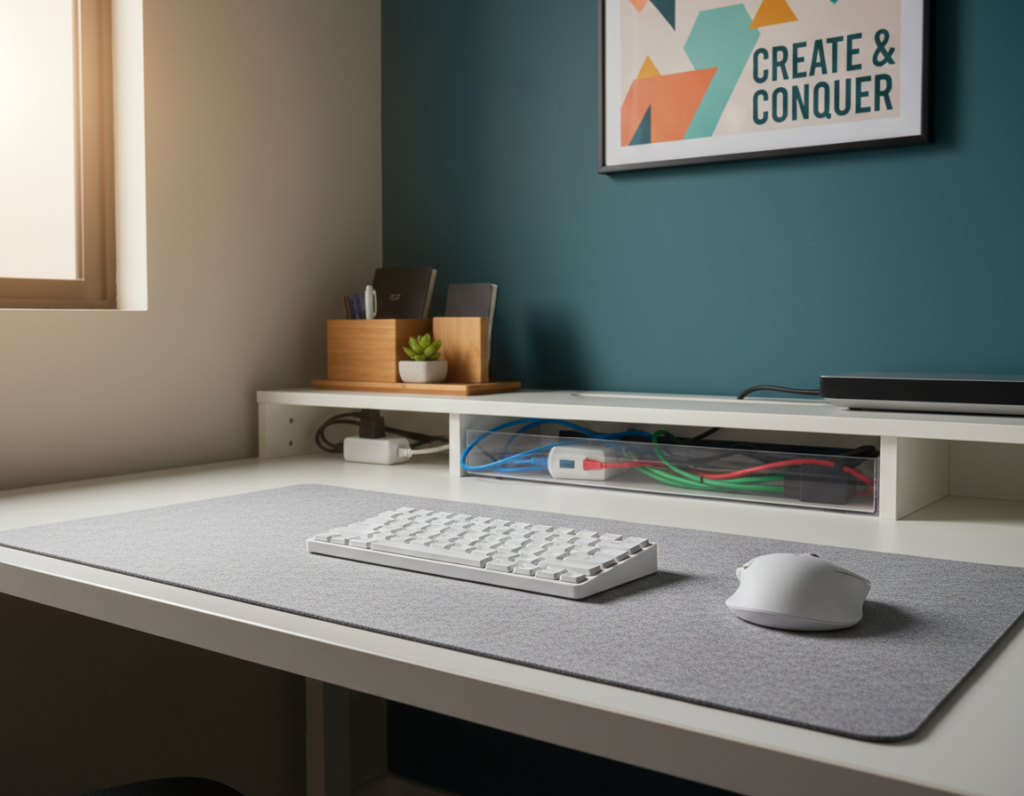
Under-desk trays to hide power bricks and excess slack
Mount an under-desk tray to tuck power bricks and adapters out of sight. Route the main cable into the tray, coil excess, and clip it so the top remains uncluttered.
Velcro or magnetic ties for easy changes
Use reusable Velcro or magnetic ties so your setup evolves without a mess. They let you swap a new peripheral in minutes and save time when you upgrade gear.
Sleeves and raceways for a single clean run
Bundle multiple cables into a sleeve or raceway to create one neat line from the table edge to the wall. This improves both safety and style while hiding tangle-prone runs.
Keeping cables safe on sit-stand desks
Plan extra slack and add anchor points under the top so cords never go taut when you change height. Secure the excess near the column to avoid snags during motion.
- Why it matters: clutter is more visible on smaller desks and can interfere with mouse travel.
- Pro tip: pair an under-desk tray with Velcro ties for fast changes and long-term order.
- Further reading: find more practical cable management ideas at cable management tips.
“A single clean run protects connections and keeps your workspace ready for the day.”
Conclusion
, This concluding guide gives a clear decision flow so you buy for performance and room, not impulse.
Match layout to your desk width, mouse needs, and daily work to reclaim usable space and improve ergonomics. The practical win is more surface for a mouse, cleaner organization, and better comfort for both gaming and office work.
Why choose what you choose: a 75% often balances keys and footprint, while a 60% maximizes clearance. Prioritize case material, PBT caps, and hot-swap for long-term value.
Pick switches that fit your room to control noise and typing experience. Decide layout first, then connectivity, then switch feel so the final setup is functional and lasting.
Note: revisit the frequently asked questions in this guide for Mac tips, numpad workarounds, and hot-swap benefits before purchase.