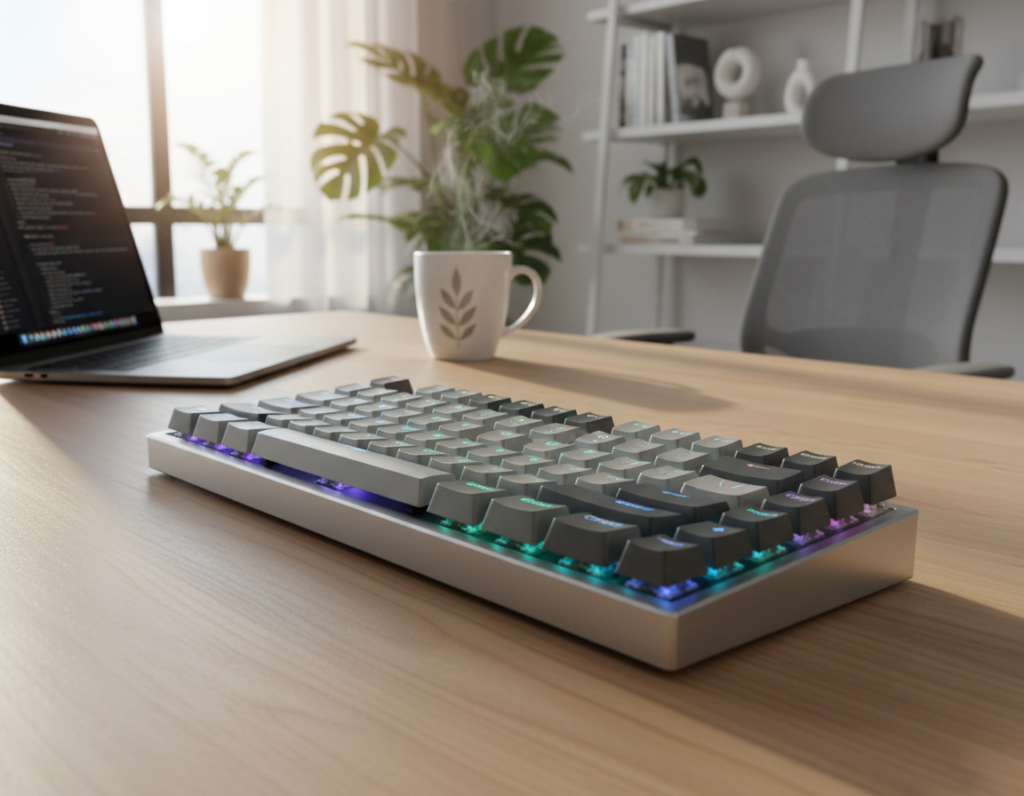
Typing efficiency means fewer errors, less strain, faster navigation, and steady output during long work blocks.
WIRED’s updated June 2025 work-from-home gear guide shows that gains come from a full system: standing desks, chairs, monitors, USB-C hubs, keyboards, mice, and lighting. That research frames this piece.
The mechanical keyboard is presented here as the centerpiece of a modern desk plan, with desk height, chair posture, monitor placement, lighting, and cable control playing key supporting roles.
This how-to is for remote and hybrid employees, students, programmers, writers, analysts, and anyone who types heavily each day in the United States.
Expect measurable, comfort-driven gains: reduced fatigue often delivers steadier output over chasing raw words‑per‑minute.
The article follows a clear flow you can implement: goals → ergonomics → keyboard selection → upgrades → desk and monitor geometry → lighting, cables, and connectivity → accessories and software → maintenance. Recommendations favor long-term quality and repeatable habits backed by real-world testing.
Define your typing efficiency goals and daily workflow
Start by listing what you actually do each day and how often you do it. That short audit reveals whether speed, comfort, or consistency matters most for your role.
Map your most common work tasks and shortcuts
Write a quick list of your top tasks: email, writing, coding, spreadsheets, tickets, chat. Mark each as keyboard-dominant or mouse-dominant.
- Note which apps you use and where hotkeys already exist.
- Flag missing shortcuts in the OS, browser, IDE, or spreadsheet tool.
- Prioritize repeating actions that eat the most time.
Identify bottlenecks like errors, fatigue, or slow navigation
Track repeated mistakes, finger or wrist strain, and navigation friction such as excessive arrow-keying or switching to a trackpad.
A 2–3 day log of where your time goes—context switching, formatting, or file searches—makes bottlenecks obvious.
Decide what “productive” means for you
Productivity can mean hitting a deadline, staying comfortable through long hours, or keeping error rates low for data tasks.
“The best setup is the one that matches your workflow, not the one with the most features.”
Use this tasks list to guide later choices for layout, monitor strategy, and software automation.
Build a baseline ergonomic foundation before changing keyboards
Before you swap devices, lock in a comfortable posture that supports long hours at the desk. Fixing chair and desk alignment first prevents blaming a new device for pain caused by poor geometry or unsupported forearms.
Neutral wrists and forearm support
Keep wrists straight: avoid upward bend or sideways deviation. Rest forearms lightly on the desk edge or armrests so muscles do not hold tension for long stretches.
Small supports such as a low wrist rest or padded chair arm can cut strain during long hours and reduce error rates.
Dial in chair comfort and adjustability
- Seat height that places elbows near desk height for a relaxed shoulder line.
- Back support that maintains a natural spine curve and pelvic tilt.
- Adjustability to fit different body designs and daily tasks in the office or home office.
Real examples: Branch Ergonomic Chair Pro for broad adjustability, Anthros Chair V2 for pelvis and spine support, and the Herman Miller Embody as a long-term quality benchmark with durability you can trust.
An ergonomic keyboard can help, but it performs best when the entire posture chain—chair → desk → shoulders → elbows → wrists—is aligned. Make changes one at a time to find what actually reduces strain.
Choose the right mechanical keyboard for your typing style
Match form and feel to the way you type. Start by deciding whether you want feedback, speed, or silence. That choice narrows the field quickly and helps you pick the best layout and sound profile for your daily work.
Switch feel and feedback for accuracy and speed
Linear switches feel smooth and suit fast key repeats. Tactile switches give a bump; they help typo‑prone typists gain confidence. Clicky switches add audible confirmation but can disrupt others.
Keyboard size options to reclaim desk space and improve mouse reach
Smaller layouts—TKL, 75%, and 65%—free up desk space and bring the mouse closer. That reduces shoulder reach and can cut strain during long sessions.
Sound considerations for home office and open office work
In a home office you may accept louder switches. In shared offices, choose quieter switches and add dampening or softer keycaps to keep noise low.
Quality and durability as long-term productivity investments
- Prioritize solid cases, dependable stabilizers, and consistent switch feel.
- Pick the right layout and switch type first; then upgrade keycaps or stabilizers.
- Take a checklist approach: function row for spreadsheets, arrows for editing, compact layouts if mouse-heavy tasks dominate.
“Choose the layout and switch feel first, refine with upgrades later.”
Mechanical keyboard setup upgrades that improve feel and consistency
Refining key surfaces, stabilizers, and layers tightens the feel across every press. These targeted changes cut mistakes and make long sessions less noisy.
Keycap profile and texture for fewer mistakes
Sculpted vs uniform: sculpted profiles guide fingers toward home rows. Uniform profiles can be great if you prefer consistent travel across rows.
Texture matters: matte PBT reduces slips and resists shine. Choose high-contrast legends so characters stay clear during focused work.
Stabilizers and dampening for smoother, quieter typing
Tune stabilizers by lubing and clipping where allowed. Add internal foam or selective O‑rings to cut rattle without losing needed feedback.
Quieter typing often improves focus in shared rooms while keeping the tactile cues you rely on for accuracy.
Layout choices and layers to reduce finger travel
- Use QMK/VIA or vendor software to place nav, media, and symbols on reachable layers.
- Reduce stretching by keeping common keys on thumb or easy-to-reach rows.
- Change one thing at a time and test with simple tasks using basic tools.
Goal: consistent feel across the full key range, especially stabilized keys like Space and Enter, so daily work flows smoother.
“Small, measured upgrades deliver the clearest gains.”
Desk and standing desk setup for better typing mechanics
Alternating between sitting and standing can change how your shoulders and forearms behave during long typing sessions. When done right, short standing intervals reduce stiffness and help you sustain focus through long work blocks.
When an adjustable desk helps workflow and comfort
Adjustable standing desks help most when you struggle with stiffness or long hours at the desk. The Vari ComfortEdge Standing Desk with four programmable presets lets you switch heights fast. A Branch Four Leg Standing Desk is a solid fixed-height option, and a Staples Union & Scale FlexFit desk converter is useful for occasional standing use.
Using presets so switching feels smooth
Set at least two positions: a sitting height and a standing height that keeps elbows near desk level. Save those presets so transitions don’t interrupt tasks.
Desk depth and keyboard placement to keep shoulders relaxed
Leave space for forearm support near the front edge. That reduces reach and keeps shoulders relaxed. Stand for short calls or reading, sit for heavy typing, and adjust timing based on fatigue.
“Standing is not automatically better—proper height and placement matter more than time on your feet.”
Workspace keyboard productivity setup: ideal keyboard, mouse, and monitor geometry
A simple triangle — keys, pointer, and display — stops you from reaching and reduces micro-movements that add up.
Keyboard and mouse positioning to keep wrists neutral
Center the keyboard to your body and keep the mouse close. This triangle—keyboard centered, mouse adjacent, monitor aligned—reduces torso twist and shoulder reach.
Neutral wrists: keep wrists straight, elbows near the torso, and place the mouse at the same height as the keys to avoid upward bends.
Monitor height and distance to prevent neck and eye strain
Raise screens 4–8 inches with a stand so the top of the monitor sits near eye level. Sit back until text is comfortable to read without leaning forward.
This reduces neck strain and eye strain during long sessions.
Why freeing surface area matters for a clean, efficient work zone
Clear space cuts micro-distractions, prevents cable snags, and speeds access to tools. Less clutter means faster task switching and fewer interruptions.
- Do a 2-minute self-check: type for two minutes, then note shoulder lift, wrist angle, and how far you reach for the mouse.
- Match layout to tasks: writers may center one main display; analysts benefit from a larger main monitor with a secondary reference screen.
- Reclaim space by lifting screens off the desk; monitor arms and stands are the next logical step.
Monitor strategy for productivity and reduced context switching
Choosing the right monitor layout cuts down on window juggling and keeps focus on what matters. A clear plan saves time and reduces interruptions during deep work.
Single ultrawide vs dual monitors
An ultrawide monitor excels at continuous timelines and side‑by‑side apps. It removes window stacks for designers and editors who need broad, uninterrupted space.
Dual monitors work better when you need a primary screen plus a dedicated reference display. Developers and analysts often keep tools, docs, or chat on the secondary display to cut context switching.
Portrait displays for email, docs, and code
Vertical screens show more lines at once. That means less scrolling in email, documents, and long code files. The LG DualUp’s 16:18 format keeps vertical content from feeling too narrow and improves review speed.
Portable monitors for hybrid work
For laptop users who move between office and home, a portable monitor preserves a consistent multi‑screen flow. The Plugable 15.6″ USB‑C model offers 100W passthrough and multiple ports, so you plug in and keep the same window layout.
- Portable monitor checklist: USB‑C power delivery, adjustable brightness, stable case/stand, and OS compatibility.
- Match your monitor choices to the way you type and reach, not to what looks impressive.
“One centered ultrawide plus a vertical side panel often gives the best balance of space and reference view.”
Use monitor arms and stands to reclaim desk space
Lifting displays clears the front of the desk so you get usable room for notes, a mouse, and a clean writing area.
Monitor arms free surface area by holding screens above the work surface. That creates a tidy area and reduces visual clutter.
Choosing VESA-compatible mounts and planning placement
Confirm your monitor supports VESA mounting and pick an arm rated for its size and weight. The Monoprice Workstream supports up to 20 lbs; the Ergotron LX handles up to 25 lbs and stays stable on standing desks.
For dual displays, consider the Vivo Dual Monitor Desk Mount as a budget option. Match the arm rating to the monitor to avoid wobble.
Built-in cable routing to reduce clutter and snag points
Built-in routing keeps cables tidy as you move screens up and down. Fewer visible cables is both a design and safety win—no tangles when changing height.
- Center the main monitor and align second screens to reduce head rotation.
- Leave clearance from desk edges and walls for tilt and swivel.
- Install without regret: measure desk thickness for clamps, confirm grommet holes, and plan cable lengths before mounting.
“Better monitor placement reduces clutter and supports a cleaner, more efficient desk.”
Lighting and desk lamp placement to reduce eye strain while typing
Good lighting keeps your eyes relaxed and your posture steady during long typing sessions. Poor light makes you squint, lean forward, and repeat lines—raising error rates and visual fatigue.
Combine natural light with task lighting
Start with ambient or natural light from windows. Then add a desk lamp for task lighting so keys, notes, and reference pages are evenly lit.
Choose the right color temperature
Use daylight‑style LED bulbs in the 5000–6500K range for clear contrast and easier reading. This light range improves legibility and reduces eye strain for long work periods.
Position to avoid glare
Place the task light to the side of the monitor, not behind it or directly over the screen. Angle the lamp so it illuminates the desk area without creating reflections on the display.
Home office tips and troubleshooting
- If you notice glare, first change the lamp angle.
- If reflections persist, move the lamp, then adjust monitor tilt.
- Use adjustable brightness for morning sun or evening low light in a small office.
Clear, balanced light reduces errors and supports longer focus without visual fatigue.
Cable management that keeps your typing area clear
A tidy set of cords makes your desk feel larger and your day run smoother.
Why cable clutter hurts: loose cables steal desk space, catch on wrists and cords, and slow simple movements. That friction increases errors and breaks focus in a home or office environment.
Under-desk trays, clips, and sleeves
Start by unplugging devices and grouping power vs data lines. Route bundles along the back edge, then secure them under the desk with trays and clips.
Use a ~40-inch cable sleeve or wrap to bundle multi-device runs. Source 2 notes sleeves and trays can cut visible clutter by ~80%, reduce snags, and improve safety.
Charging zones and daily items
Create one charging corner or an under-desk bay for phones and pads so chargers don’t sprawl across the main typing surface.
Tip: label both ends of frequently swapped cables and leave service loops for standing desks to avoid tugging.
Safety and efficiency benefits
- Fewer cords on the floor lowers trip hazards and accidental unplugging.
- Clear surfaces free up usable space and help maintain better posture.
- Consistent management makes device swaps faster and items easier to find.
“A clear desk supports better posture and an intentional work flow.”
Hubs, docks, and ports: simplify connections for keyboard-centric work
A dependable dock reduces the small, repeated interruptions that quietly steal work time. Plugs that reliably deliver power and video let you focus on tasks, not reconnections. A compact hub or a full docking station saves time at the start and end of the day.
USB-C hubs for keyboards, mouse, charging, and external displays
Portable hubs fit a laptop bag and give quick access to USB-A ports, an HDMI output, and PD charging. Consider the Plugable USB-C 9-in-1 Hub for up to 140W power delivery and single-screen support. Budget options like the Monoprice 5-in-1 or the Ugreen Revodok Pro 211 work well for short trips.
Docking stations for multi-monitor setups and fewer dongles
Choose a dock when your desk needs a stable multi-monitor, Ethernet, and constant power. The Plugable USB-C Dual HDMI Docking Station handles two external displays and keeps cables consolidated under a monitor arm.
- Plan ports: count USB-A/USB-C devices—keyboard, mouse, headset, webcam—and pick HDMI/DisplayPort or USB-C video accordingly.
- Reliability: prioritize stable PD and solid connectors to avoid intermittent disconnects.
- Cable routing: mount the hub near the monitor arm or under the desk to keep the main typing area clear and fast to use.
“Fewer dongles and a single, trusted connection cut small time losses that add up across the week.”
Input device pairing: mouse, mouse pad, and accessories that support typing productivity
Smooth hand transitions between typing and pointing keep long sessions efficient and less tiring. The best mechanical keyboard won’t feel efficient if the mouse forces reaching or constant repositioning.
Mouse fit and hand comfort for mixed typing-and-pointing tasks
Choose a mouse whose shape matches your grip and task mix. For heavy pointer work pick a larger, ergonomic shape; for mostly typing choose a compact low‑reach model.
Keep sensitivity consistent so you avoid micro‑corrections that slow you down and add errors.
Desk mat benefits for control, noise reduction, and smoother workflow
Use a soft desk mat to unify tracking and cut vibration from key strikes. A common starting size is about 24×14 inches; larger mats can hold a full keyboard and mouse area.
Defined mats reduce noise, keep the mouse surface consistent, and give a clear zone for both hands to return to naturally.
Footrest and circulation support for longer focus blocks
An adjustable footrest (roughly 4–12 inches) improves circulation and posture. Better circulation means less fidgeting and steadier typing mechanics.
“Align the mouse pad edge with the keyboard home row so both hands return without looking.”
- Pair items that reduce reach and grip tension.
- Pick simple tools that keep interruptions low and boost long‑term productivity.
- Test one change at a time and note comfort over a full day.
Audio tools and acoustic management for focus
Sound shapes focus: the right audio choices keep long typing blocks steady and reduce errors. Sudden noises break rhythm, which raises mistakes during writing, coding, and analysis.
Noise-canceling headphones are a top recommendation for shared office areas or busy homes. Active cancellation can lower ambient noise by about 30 dB, making it easier to maintain long focus stretches. Choose comfortable pads and breathable materials for all‑day wear.
Practical acoustic tweaks
Soft surfaces absorb echoes and reduce sharp interruptions. Add rugs, heavy curtains, and bookcases to cut reverberation.
- Panels: acoustic panels can absorb up to ~70% of ambient noise in many rooms.
- Textiles: rugs and curtains smooth sound and improve speech clarity on calls.
- Placement: soften reflective surfaces near the main seating and call area.
Deep work sound playbook
Use consistent background audio—or silence—as a focus cue. Reserve meetings and noisy tasks for different blocks. If your mechanical device is loud, prefer quieter switches, pair them with headphones, and add room softening to protect others.
Quiet work life gives clearer output and less end‑of‑day fatigue from constant refocusing.
Software and shortcuts that amplify mechanical keyboard efficiency
A consistent software rhythm—timers, task lists, and search shortcuts—keeps momentum and cuts micro-stalls.
Time management: blocks and Pomodoro
Use time blocking to reserve focused windows for writing, coding, or review. Pair each block with Pomodoro intervals (25 minutes work, short break) to protect flow and reduce fatigue.
Project tools to lower mental load
Adopt project management apps that show a clear next action. Tools like Trello or Asana reduce tab overload and stop you from re-deciding what to do next.
Secure file access and faster storage
Keep data organized with consistent folders and pinned locations for fast search. Use cloud storage with 256-bit encryption and at least 1TB capacity to avoid risky local workarounds.
- Build a shortcut stack: OS text expansion, app hotkeys, and window-management keys mapped to your most common flows.
- Automate routine edits: macros, snippets, and search templates cut repeated formatting time.
Fewer micro-stalls — searching, switching, reformatting — makes each keystroke more valuable.
Daily maintenance habits to keep your setup fast and comfortable
A few focused minutes each day prevent clutter from stealing comfort and speed.
End-of-day 5-minute reset: clear the desk surface, return items to zones, and prep what you will use next. This makes mornings faster and reduces decision fatigue.
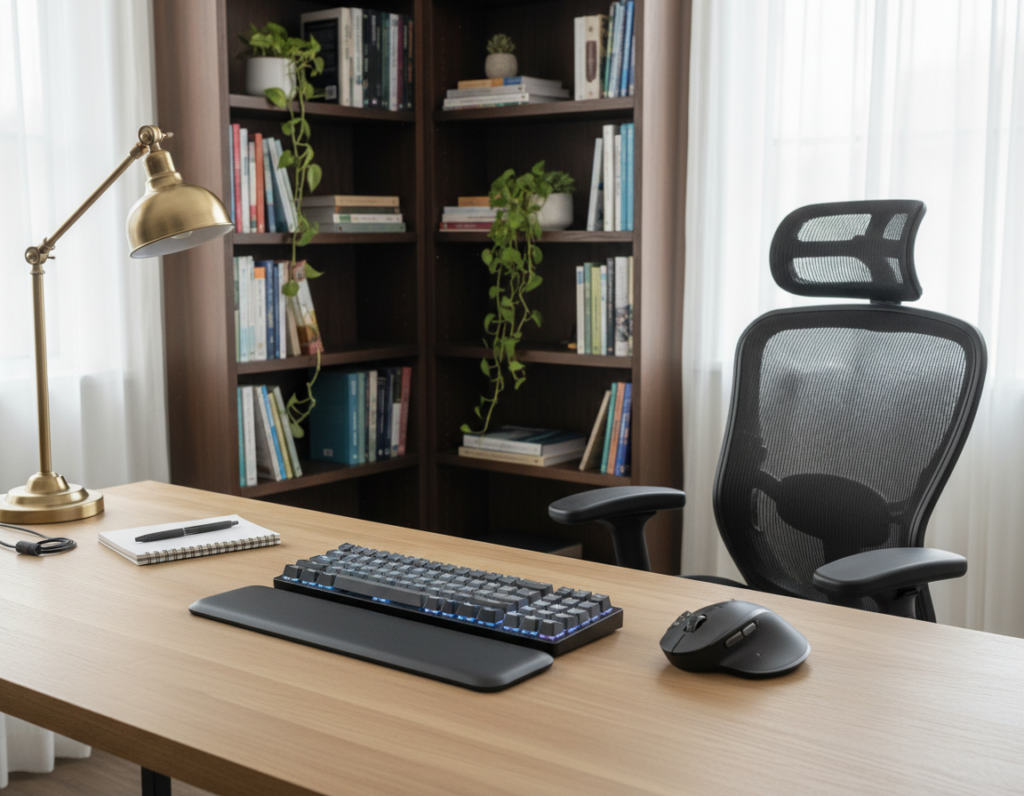
Five-minute resets to maintain a clutter-free desk
Make a short checklist: toss trash, stack papers, and park cables. In shared office areas do this before you leave. At home, add a quick dust swipe when pets are around.
Cleaning routines for keyboards and high-touch items
Every few days remove debris with compressed air, wipe keycaps with a damp cloth, and sanitize high-touch surfaces. These actions keep feel consistent and extend device life.
Rotation habits: standing breaks, micro-pauses, and posture checks
Use brief standing breaks during low-precision tasks like calls or reading. Sit for heavy typing blocks to preserve accuracy. Take micro-pauses every 30–45 minutes to reset posture and circulation.
- Quick schedule: stand during calls, sit for deep typing, micro-pause hourly.
- More frequent resets in shared office space; deeper weekly clean at home.
- Small maintenance keeps a well-loved setup feeling new.
“Maintenance preserves comfort and keeps your desk performing reliably month after month.”
For more tips on keeping a tidy zone, see desk organization tips.
Conclusion
A small set of deliberate changes yields the biggest gains in daily typing comfort and speed.
Define goals, lock in ergonomics first, choose the right mechanical keyboards, then optimize your desk, monitor layout, lighting, and connections. This method keeps changes measurable and useful.
Treat the whole desk and laptop arrangement as a system: the keys are central, but display placement and reliable connections decide how smoothly you work. Fix strain, cut clutter, and speed navigation before adding gear.
Two-week action plan: pick one change from ergonomics, one from keyboard tuning, one for monitor geometry, one cable fix, and one shortcut to learn. Implement each over two weeks and re-check when you move between home office and office or get a new laptop.