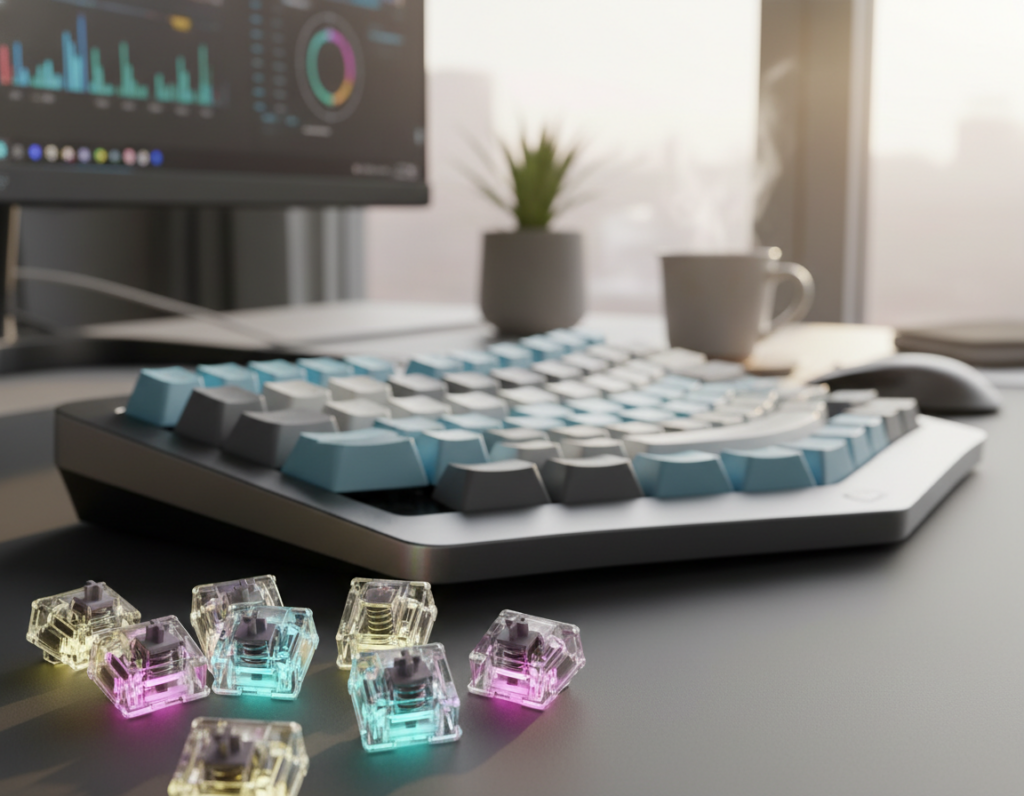
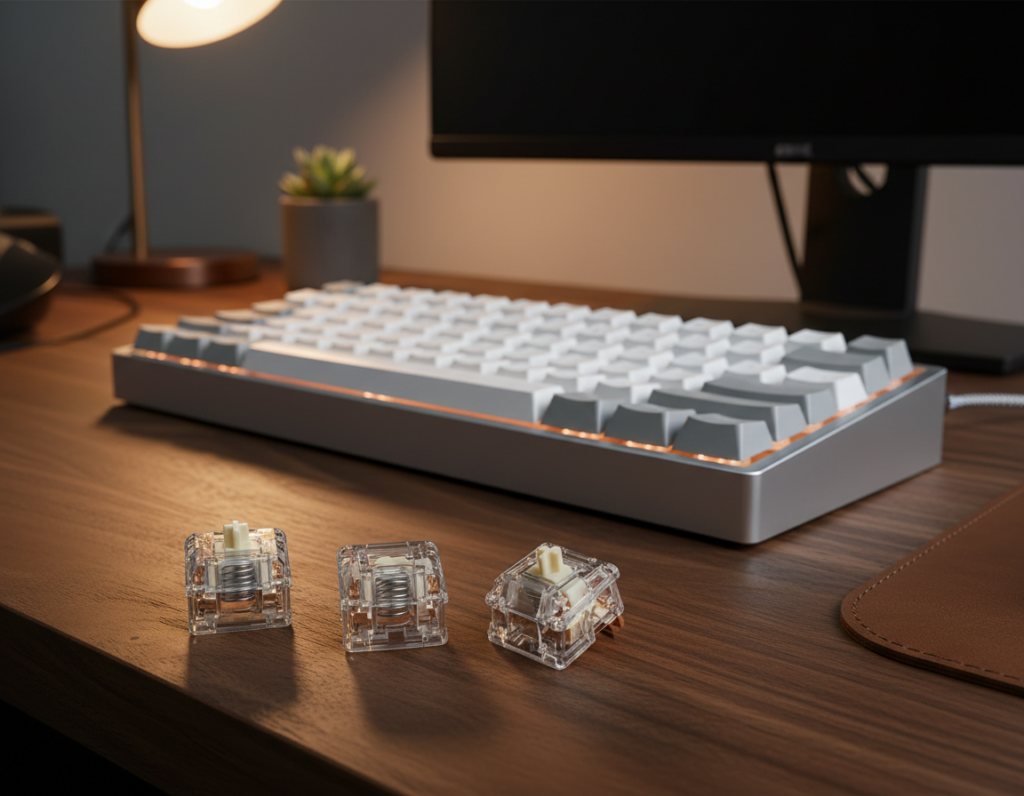
This roundup helps developers pick tactile switches and build an ideal keyboard setup that favors comfort and accuracy during long work days.
The guide sets clear expectations: we focus on feel, sound, and fatigue management. You will get practical tips, model picks, and setup tweaks that matter to daily coding and documentation.
What “best” means here is reliable key registration, steady feedback, and low enough noise for calls and shared spaces. We also value a pleasing sound that does not distract.
Who should read this? Developers who type all day, handle terminals and docs, and those who game lightly after work. Later sections evaluate actuation, bump position, travel distance, sound, and build choices like hot-swap PCBs and stabilizers.
Use this comparison to shortlist pieces that match your workflow and office, rather than chase hype. The tactile category sits comfortably between linear and clicky styles, offering a confirming feel with quieter output than clicky types.
Why tactile switches work so well for coding marathons
A subtle bump under the finger gives precise feedback that matters during long coding sessions. This physical cue helps developers trust each press and cuts down on second-guessing while they type.
Tactile feedback for accuracy without bottoming out
The tactile bump marks the actuation point, so touch typists feel when a keystroke registers. This reduces reliance on looking at the screen and improves accuracy during dense editing tasks.
Comfort advantages that help reduce typing fatigue over long sessions
Learning the bump also encourages many users to stop bottoming out. Less harsh impact lowers finger and wrist strain over time.
Comfort matters in coding: repeated patterns—shortcuts, brackets, and semicolons—benefit from consistent feedback. That steady response helps maintain speed without adding fatigue.
Quieter than clicky switches, more confirmatory than linear switches
Compared with clicky switches, this style avoids sharp noise, making it friendlier in shared spaces and calls. Compared with linear switches, it gives clearer confirmation and fewer missed presses.
In short: the right feel and controlled sound form a loop that aids focus, accuracy, and endurance. These traits guide the selection criteria and product picks that follow in the next sections.
Understanding tactile switches in mechanical keyboard switches
A defined feedback point in a key’s travel helps you type without second-guessing. This section explains what a tactile switch is, what the tactile bump feels like, and how the parts and spring create that sensation.
What a tactile switch is and what the tactile bump means
A tactile switch is a type of mechanical switch that completes a circuit when pressed and gives a noticeable bump. The bump signals the actuation point, so you know the keystroke registered without needing to bottom out.
How the spring-loaded mechanism creates the bump during actuation
Inside a typical keyboard switch you’ll find a cover, plunger (stem), contact dome, and base. Pressing the plunger flexes the contact dome and connects the circuit. That flex produces resistance and the tactile bump you feel.
- Feel: The bump usually sits in the first half of travel and differs from an audible click in clicky designs.
- Mechanics: Spring weight and internal resistance shape whether the bump feels rounded, sharp, or D-shaped.
- Materials: Housing and stem materials, including POM, influence smoothness and sound.
Practical note: Read spec sheets for actuation point, total travel, and force. Those numbers explain how a switch will behave under fast symbol entry and shortcut-heavy workflows.
Tactile vs linear vs clicky switches for programmers
Choosing the right switch family shapes how you feel and perform at the keyboard all day. This section compares the main options so you can match sound, feel, and accuracy to your workspace and workload.
Feel and keystroke consistency
Linear switches deliver a smooth keystroke and remain consistent across long sessions. They are the quietest and suit users who favor uninterrupted speed.
Tactile switches add a noticeable bump that helps maintain rhythm without bottoming out. That feedback can cut mistakes and reduce fatigue.
Sound and noise considerations for shared workspaces
Clicky switches produce a distinct audible click and are the riskiest in open offices and hybrid calls. Noise pickup from mics makes them a poor choice in many US workspaces.
Linears have the lowest noise profile, while tactile options sit in the middle with moderate sound.
Typing accuracy, speed, and experience trade-offs
Linears favor raw speed and rapid repeats. Tactile types boost accuracy and lower accidental presses. Clicky units can be precise but often distract teammates.
“Pick by how much feedback you want, how sensitive your room is to noise, and how heavy your typing load is.”
- Decision tip: choose based on feedback level, office sound rules, and daily typing hours.
- Developer gamers: many lean to tactile as a balanced option.
How to choose the best tactile switches for programming
Match actuation weight and travel distance to your daily typing habits and workspace.
Actuation force ranges and who they fit best
Actuation refers to the force needed to register a key. Low force (~35–50 gf) helps speed-focused users and gamers who press a lot. Medium force (~50–70 gf) tends to suit all-day typists who want fewer accidental presses.
Practical note: heavier force reduces slip during complex shortcuts; lighter force can cut fatigue during long typing sessions.
Bump profile and actuation point for clean registration
Where the bump sits matters. An early, sharp bump feels snappy and helps confirm quick edits. A later, rounder bump feels smoother when proofreading long documents.
Clean key registration comes from a clear tactility point. The clearer the bump and point, the fewer double-presses and missed characters you will see.
Travel, pre-travel, and why distance matters
Travel distance affects speed and control. Short travel (~2–3.5 mm) feels fast but can raise accidental actuations. Standard travel (~4 mm) gives more control during long sessions.
Pre-travel sets how far you move before actuation. Less pre-travel speeds input; more pre-travel adds deliberate feel.
Noise level and “quiet but satisfying” sound signatures
Choose quieter options in shared workrooms. Moderate sound that leans toward a soft thock often feels satisfying at home.
Decision tip: prioritize comfort and consistency over trends, then test shortlisted choices that match your actuation, bump, travel, and noise needs.
Top tactile switch picks for programming in 2026
This shortlist maps five usable lanes so developers match force, travel, and sound to real daily needs. Each pick lists key specs, materials, and buying notes to speed your decision.
Gazzew Boba U4T — consistent, thocky feedback
Why choose it: D-shaped bump, POM stem, and a proprietary Boba housing deliver a deep thock and steady tactile feedback. Available with 62g or 68g bottom-out options to tune force.
Notes: Korean stainless spring and light factory lube reduce scratch and help compatibility with MX hot-swap boards.
Cherry MX Brown — office-friendly, familiar feel
Specs: 55 gf operating force, 2.0 mm pre-travel, 4.0 mm total travel, CHERRY Gold Crosspoint tech. Durable and smooth thanks to factory lube.
Notes: Widely supported housing and keycap fit make this a reliable default for shared workspaces.
- Gateron Baby Kangaroo: early ~0.5 mm bump and double-stage spring for snappy rebound; transparent PC housing brightens RGB.
- Holy Panda X Clear: refined tactility, PC top + nylon bottom housing, smooth POM stem, 60g spring, pre-lubed.
- Kailh Speed Copper: 1.1 mm pre-travel, 40 gf actuation, 3.5 mm travel — a shorter distance for faster inputs with tactile feedback.
“Pick by force, travel, and how the housing and spring shape sound and feel.”
Buying tip: check 3-pin vs 5-pin MX compatibility, and note that factory lube often saves a first round of mods while keeping sound and feel close to stock.
Matching switch feel to your workflow: typing, debugging, and light gaming
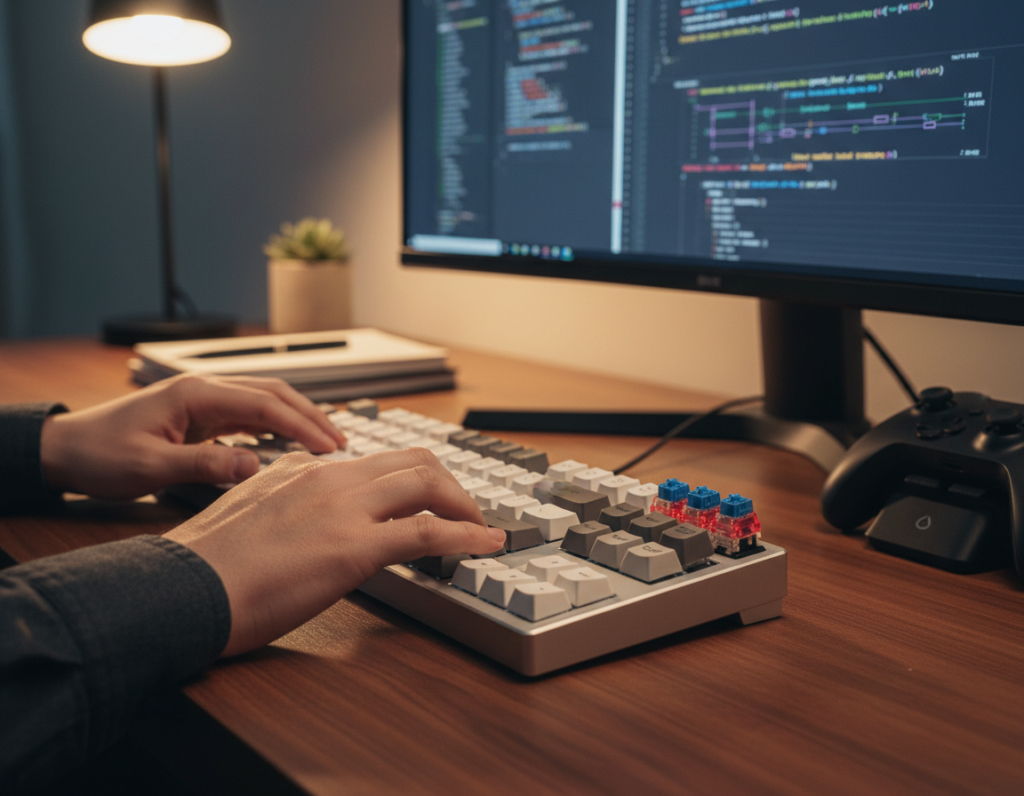
Match your switch choice to how you spend most of your typing hours: writing, debugging, or casual gaming. Each workflow leans on different traits — clear feedback, deliberate force, or quick repeatability — so pair feel to tasks, not trends.
Medium-force setups for precision and fewer accidental presses
Medium-force (~50–70 gf) suits developers who use many modifiers and shortcuts. That extra force helps prevent unintended activations during dense edits and complex key combos.
If you handle heavy IDE navigation and frequent hotkeys, medium force tends to improve accuracy and reduce typo rates.
Lower-force, speed-oriented options for faster inputs
Lower-force (~35–50 gf) helps typists and gamers who favor quick repeats and less fatigue over long sessions. Lighter action speeds up rhythm and reduces effort during extended typing.
Casual gamers will find these options responsive while still keeping a typing-friendly feel during documentation or email tasks.
“If you struggle with accidental presses, lean medium-force; if you want quicker input and less strain, test lower-force options.”
- Writing code and docs: prioritize clear feedback and accuracy.
- Debugging and terminal work: pick a force that limits slips during fast edits.
- Light gaming after work: choose speed-oriented options that still feel solid for typing.
Decision cue: test a few switches when possible. Finger strength and typing style change how force and feel translate to comfort over time.
Building the ideal tactile keyboard setup around your switches
Start your build around a board that lets you swap parts without a soldering iron. A hot-swappable keyboard lets you try different switches quickly. That reduces risk when you pick a daily driver.
Hot-swap boards and compatibility checklist
Why hot-swap works: test multiple switch options without soldering. For developers this speeds up tuning and saves time and money.
- Confirm MX compatibility and 3-pin vs 5-pin support.
- Check LED/RGB needs if you use underglow or per-key lighting.
- Match plate style and layout to your daily key map.
Stabilizers, lube, and factory considerations
Tuned stabilizers improve large keys like space, enter, and backspace. A small stabilizer tweak cuts rattle and evens travel on long presses.
Factory lube is often good enough for a smooth feel out of the box. If you hear scratch or harsh noise, a targeted lube pass will calm housing friction without changing tactility much.
Materials, keycap profile, and sound
POM stems smooth stem-to-housing contact. Housing materials (PC, nylon, or blends) shape the attack and body of each keystroke.
Pick a keycap profile that matches your ergonomics. Sculpted profiles ease long sessions and can subtly alter sound and feel. Prioritize these elements alongside switches to make the whole mechanical keyboard feel premium and reliable.
Sound and comfort tuning for long work sessions
A few targeted tweaks cut harsh noise without erasing the physical feedback you rely on. These changes aim to keep responsive feedback while lowering the room-level sound your team notices.
Reducing noise without losing feedback
Start with switch selection, then refine with light lubrication, stabilizer tuning, and keycap fit. Factory lube often removes scratch and keeps helpful feedback intact.
Mod simple parts first: a thin film of lube on housings or a small pad under the plate can cut unwanted noise while preserving the bump you feel. Test one change at a time.
Spring weight, resistance, and long-term fatigue
Heavier springs give control but increase fatigue over long typing time. Lighter force reduces effort but risks accidental presses.
Look for a middle ground: medium force and balanced spring profiles keep resistance near the bump without tiring fingers over an eight-hour block.
Desk setup that changes perceived sound and feel
- Use a desk mat to soften bottom-out impact.
- Adjust keyboard angle and mounting style to lower harsh strikes.
- Choose denser keycaps and tuned stabilizers to shape the body of each keystroke.
Iterative tuning wins: small adjustments often matter more than replacing switches. A quieter, smoother board helps maintain a steady typing rhythm and reduces distractions in shared US workspaces.
Conclusion
A well-chosen tactile setup keeps you accurate, comfortable, and unobtrusive in shared workspaces. These designs offer clearer feedback than linears and less noise than clicky types, helping sustain speed and reduce fatigue over long sessions.
Choose by force range, then pick an early or rounded bump and a noise profile that fits your office. Quick recap of 2026 picks to shortlist fast:
Boba U4T: deep thock, stable feel.
Cherry MX Brown: familiar, office-friendly.
Baby Kangaroo: early bump, snappy rebound.
Holy Panda X Clear: refined tactility, smooth travel.
Kailh Speed Copper: shorter travel, faster input.
If unsure, test several on a hot-swap board before committing. Use this know the best keyboard switches guide to compare options and buy with confidence. The right choice matches your hands, workflow, and room.