Every long writing session starts with the right tools. In 2026, creating an optimized mechanical workspace is key to steady output and low fatigue. A well-chosen keyboard can boost speed and accuracy while keeping hands comfortable.
This guide focuses on practical choices that matter. You will learn how switches, ergonomic layouts, and reliable connectivity shape daily flow. Clear hardware choices let you concentrate on ideas, not on aches or missed keys.
We cover how different keyboards affect posture, touch, and typing rhythm. Expect actionable tips to tune your gear and your desk. With the right setup, professional writers keep momentum and protect long-term health.
Key takeaways: Choose comfortable hardware, match switch feel to your typing, and prioritize ergonomics to sustain long-form work.
The Impact of Hardware on Writing Productivity
Small hardware differences add up, changing output and comfort over long typing sessions. Good tools lower friction so ideas flow faster and hands tire less.
The Link Between Speed and Comfort
Comfort drives speed. Studies show ergonomic devices can boost typing speed by up to 20% while cutting errors. That gain matters when writers spend hours drafting.
“Ergonomic designs let the hands move naturally, which often improves typing speed and reduces error rates.”
Preventing Repetitive Strain
Hardware affects health. Proper support reduces strain linked to carpal tunnel and chronic fatigue. Choose durable options that maintain consistent typing comfort across long writing sessions.
- Research: writers spend a large share of the day on draft work; the physical typing experience influences output.
- Benefit: ergonomic choices increase typing speed and reduce corrections, improving focus during writing sessions.
- Health: high-quality designs support hands and wrists to prevent repetitive stress during long typing.
Understanding Mechanical Keyboard Setup for Writers
The first step is to match feel to habit. A clear choice sits between tactile switches and soft membrane designs.
Why it matters: distinct feedback can speed typing and reduce errors. Many writers report steadier rhythm and less fatigue when feedback matches their pace.
Compare the options:
- Membrane models are quiet and familiar. They suit light, casual typing and lower budgets.
- Mechanical membrane hybrids aim to blend tactile response with a softer press.
- Traditional switch-based devices deliver crisp feedback and consistent travel, which helps on long writing sessions.
Before upgrading, evaluate your daily workflow. Test feel, sound, and return on comfort. Small trials reveal whether a new device will truly serve long-form work and reduce strain.
Decoding Switch Types for Long Typing Sessions
A keyboard’s switch type is the single component that most directly shapes your typing experience. Choosing the right option affects feel, sound, and stamina during long typing sessions.
Tactile Brown Switches
Brown switches deliver a gentle bump that gives clear tactile feedback without loud clicks. This makes them ideal in shared spaces where comfort matters but silence helps focus.
Benefit: a responsive typing experience that often enhances typing speed and helps maintain rhythm across writing sessions.
Clicky Blue Switches
Blue switches pair an audible click with a tactile actuation. Many users enjoy the classic sound that echoes old IBM designs.
Note: the click can be distracting in open offices, but it can boost typing speed for those who like sonic confirmation.
Linear Red Switches
Red switches are smooth and consistent with no tactile bump. Gamers often prefer them, yet they also work for long writing bouts when a quiet, low-resistance press is wanted.
- Mechanical switches are the heart of any mechanical keyboard and choosing between tactile, clicky, or linear types enhances typing speed.
- Tactile feedback helps sustain a steady pace during extended sessions.
- Adding RGB backlighting or RGB lighting personalizes the desk without harming core performance.
- Consider a TKL layout to save desk space while keeping essential keys close.
Ergonomics and Wrist Health
Choosing the right tilt and split design keeps your hands neutral over hours of work.
An ergonomic keyboard supports the natural alignment of your wrists. This lowers the risk of repetitive strain and helps sustain pace during long writing sessions.
Adjustable tilt lets you fine-tune angle and height. Small changes reduce pressure on the wrists and keep your hands relaxed during extended typing sessions.
Adjustable Tilt and Split Designs
The Logitech Ergo K860 is a practical example. Its split layout and adjustable tilt provide firm wrist support and promote a neutral posture while you type.
- Support matters: built-in palm rests and a curved profile keep pressure low on key joints.
- Custom comfort: tilt adjustment adapts to desk height and chair position.
- Long-term benefit: ergonomic keyboards reduce fatigue so hands stay productive across long typing and writing sessions.
Invest in a model that offers robust support and clear adjustability. Small ergonomic gains protect your hands and maintain your output over long typing work.
Wired Versus Wireless Connectivity
Connection type affects clutter, reliability, and power management. A clear choice between wired and wireless changes your desk layout and how you sustain long writing sessions.
Wireless connectivity gives a clean, minimalist workspace that many writers prefer. It removes cables and makes the desk feel calmer. Many modern wireless keyboards offer long battery life and seamless pairing.
Still, wired connections deliver unmatched reliability. A wired keyboard eliminates concerns about battery life and signal dropouts during critical typing work. If uninterrupted focus matters, a cable can be worth keeping.
Hybrid models help bridge the gap. Some keyboards offer both wired and wireless modes so you can swap between reliability and a clutter-free desk. Backlit keys are common on wireless options, giving visibility in low light while keeping a professional look.
- Wireless: clutter-free, portable, long battery.
- Wired: stable, no battery management, steady latency.
- Hybrid: best of both—flexible and practical.
The Role of Keycap Profiles and Materials
The way keycaps curve and feel has a direct effect on typing speed and comfort. Choosing the right profile can reduce finger travel and make long sessions less tiring.
Profile Shapes
Profile shape governs finger position and reach. Sculpted rows like SA or OEM guide fingers with a stepped curve.
Flat profiles such as XDA or uniform caps let hands move in straight lines. That can help fast typists keep a steady rhythm.
Material Durability
Keycap material affects feel and longevity. PBT resists shine and holds texture after millions of presses.
ABS caps feel slicker at first and may wear faster. Many writers pick PBT to keep consistent typing comfort over years.
- Shape impacts flow: choose sculpted or flat to match your posture and reach.
- Texture matters: a matte finish improves grip during long writing sessions.
- Longevity: higher-grade materials maintain legend clarity and resist shine.
“Small changes in cap shape and material can transform daily typing into a more natural, fatigue-free habit.”
Evaluating Build Quality and Frame Materials
A sturdy chassis keeps vibrations down and confidence up when you type for hours.
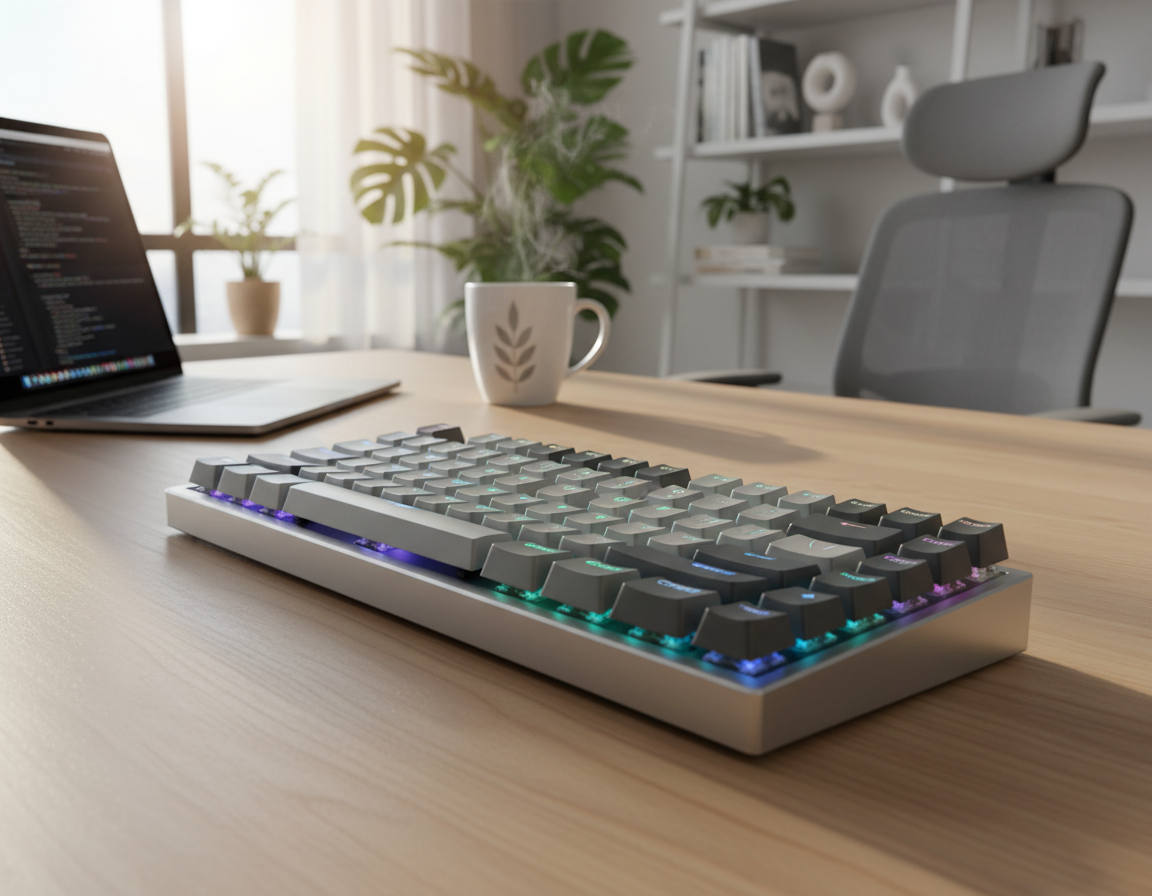
Aluminum frames, like the one on the Corsair K70 RGB, lock the board to your desk. That stability reduces noise and limits flex during intense passages.
High-end mechanical switches matter as much as the shell. They deliver consistent tactile feedback and make the typing experience predictable session after session.
Durability affects comfort. A solid frame prevents rattles and preserves key feel. It also supports added features such as rgb lighting without compromising performance.
- Choose premium materials to reduce flex and long-term wear.
- Prioritize dependable switches that keep tactile feedback uniform.
- Consider models with rgb backlighting integrated into a robust frame.
In short: invest in quality build and materials to protect your workflow and your investment across years of writing.
Top Mechanical Keyboards for Professional Writers
The right model balances tactile feedback, build quality, and practical connectivity. This short list focuses on options that enhance typing without adding distractions.
Keychron K2 — A compact choice with hot‑swappable switches and both wireless connectivity and wired modes. It delivers a responsive typing experience and long battery life that supports long writing sessions.
Razer Pro Type — Designed for quiet, ergonomic use in shared spaces. The Razer Pro Type is a top pick when tactile feedback must be subtle and support matters during long sessions.
- Logitech MX Keys — A premium membrane option with smart illumination and multi‑device pairing. It suits pros who want a refined typing experience and excellent connectivity.
- Microsoft Surface — Ultra‑slim and minimalist, ideal for quiet environments and simple desk setups.
- Corsair K70 RGB — Favored by serious users who want durable frames, mechanical switches, and strong tactile feedback plus rgb backlighting to personalize the desk.
Choosing the best keyboard means weighing features like wireless keyboard modes, battery life, and ergonomic support. Pick the model that matches your daily flow and enhances typing speed without compromise.
Integrating Keyboards into Your Workspace
A tidy desk and thoughtful peripheral placement let your hands work without distraction. Start by clearing the area directly in front of you and keeping only essentials within reach.
Optimizing Desk Space
Position the keyboard so your elbows rest near your sides. That reduces shoulder strain and keeps your wrists neutral during long typing sessions.
Choose a compact model when possible. A smaller footprint brings the mouse closer and lowers shoulder reach. This simple change improves comfort and speed.
- Use a tray or desk mat to create a dedicated zone that offers anatomical support.
- Keep the screen at eye level and place the input device slightly below to maintain a natural wrist angle.
- Organize cables and accessories to prevent clutter that interrupts focus; many writers spend long hours and need a calm surface.
Integration matters: thoughtful placement and a compact approach create a more efficient environment tailored to professional needs.
Customization Options for Enhanced Comfort
Fine-tuning angle, touch, and shortcuts makes long typing sessions feel easier and faster.
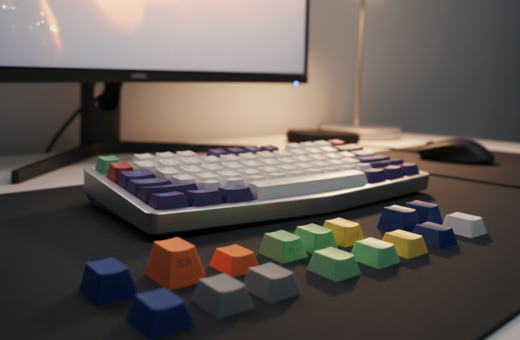
Swap keycaps or add a soft wrist rest to tailor your typing experience. New caps can change feel and height, while a wrist rest keeps wrists neutral during long drafts.
Many writers add rgb backlighting or rgb lighting to create a calm or inspiring workspace. Backlight options also help when you work in dim light.
- Angle and tilt: adjustable feet or tilt kits let you find a natural wrist position.
- Software tools: remap keys or create macros to speed repetitive edits and build custom shortcuts.
- Comfort mods: different keycaps and palm supports reduce fatigue and improve the daily flow.
Customizing your keyboard and choosing the right accessories turns a generic device into one that fits your habits. Small changes to keyboards bring big gains in comfort and long-term productivity.
Maintaining Your Equipment for Longevity
A little daily maintenance goes a long way toward preserving performance and comfort.
Regular cleaning keeps a keyboard responsive and pleasant to use. Wipe surfaces weekly to remove oils and dust that build up from long typing sessions.
Use compressed air to clear debris beneath the keys. This prevents switches from sticking and preserves key feel over time.
- Keep food and drinks away to avoid spills that can ruin electronics.
- Inspect cables and wireless links periodically to ensure steady connections.
- Replace worn keycaps or pads to maintain consistent typing comfort.
Simple checks extend the life of your keyboards and cut down on surprises during important work. Good upkeep protects your investment and keeps writers focused on craft, not repairs.
Troubleshooting Common Typing Issues
When typing feels off, first decide if the fault is hardware, software, or posture. This short check saves time and often restores smooth typing fast.
Quick fixes to try:
- If your hands hurt, switch to an ergonomic keyboard like the Logitech Ergo K860 for better wrist support.
- Lost keys or lag on a wireless keyboard? Check battery life and clear obstructions near the receiver to improve wireless connectivity.
- If keystrokes fail, clean the switches or review driver and macro settings to restore response.
- Want more speed and comfort? The Razer Pro Type is a recommended mechanical keyboard that enhances typing speed and comfort.
- For quiet, illuminated use, consider a membrane option such as the Logitech MX Keys with smart backlit keys.
Choosing the best keyboard—mechanical keyboards, mechanical membrane hybrids, or membrane boards—solves many chronic errors and fatigue. Pick a model that matches your workflow and the tactile feedback you prefer. That choice enhances typing and keeps writers productive.
Conclusion
, A well-chosen peripheral blends comfort, reliability, and a typing feel that helps ideas flow. Choosing among the best keyboards writers means weighing tactile feedback, ergonomic support, and reliable wireless connectivity to match your daily pace.
Invest in quality. Options like the Razer Pro Type and models with smart backlighting such as Logitech keys show how modern gear improves typing experience and typing speed during long writing sessions. Consider membrane keyboards if you need quiet, or an ergonomic keyboard to protect wrists during extended sessions. Ultimately, the best keyboard is one that feels natural and keeps you focused through serious writing.