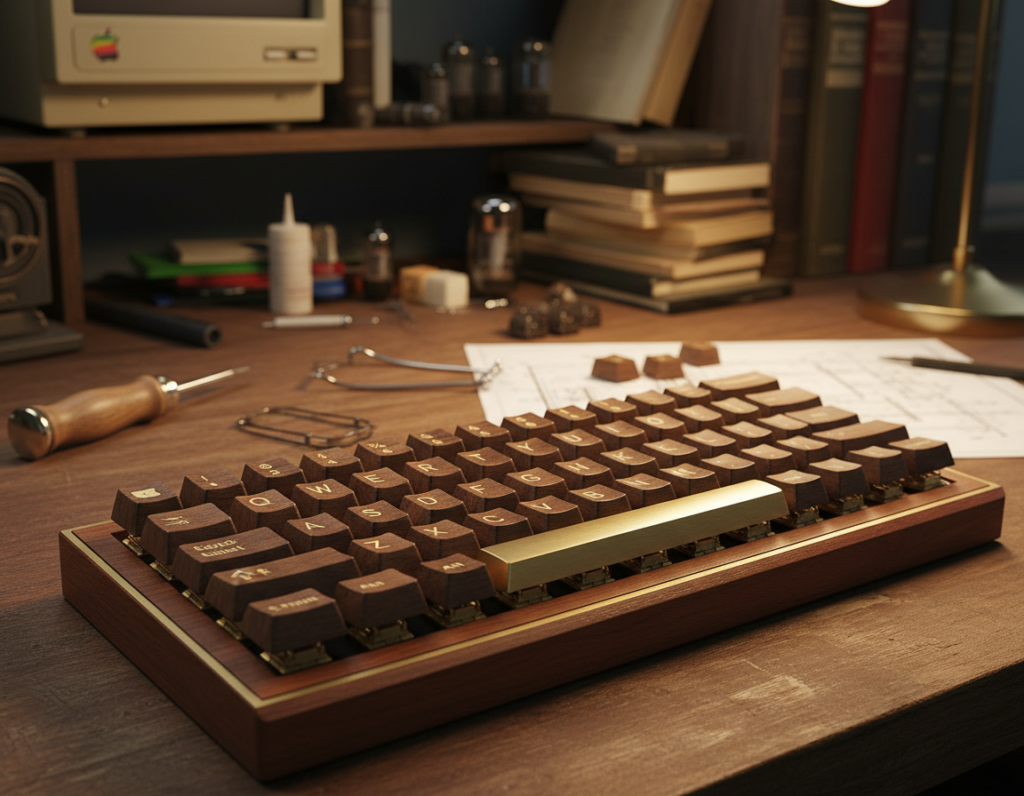
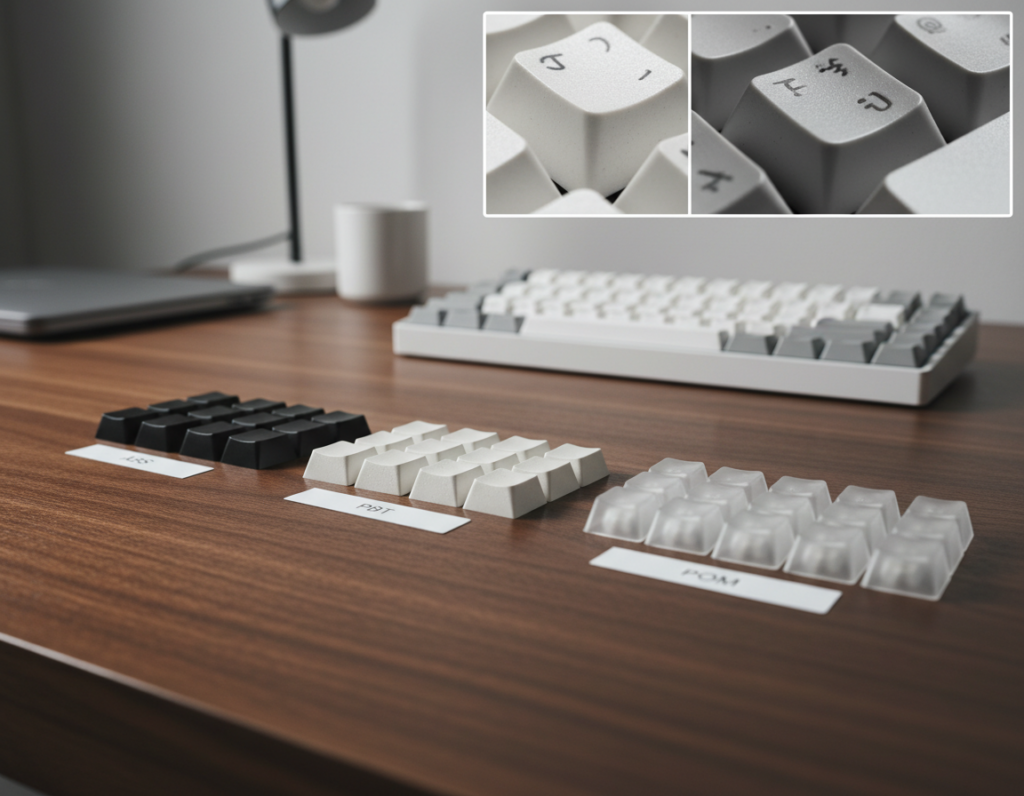
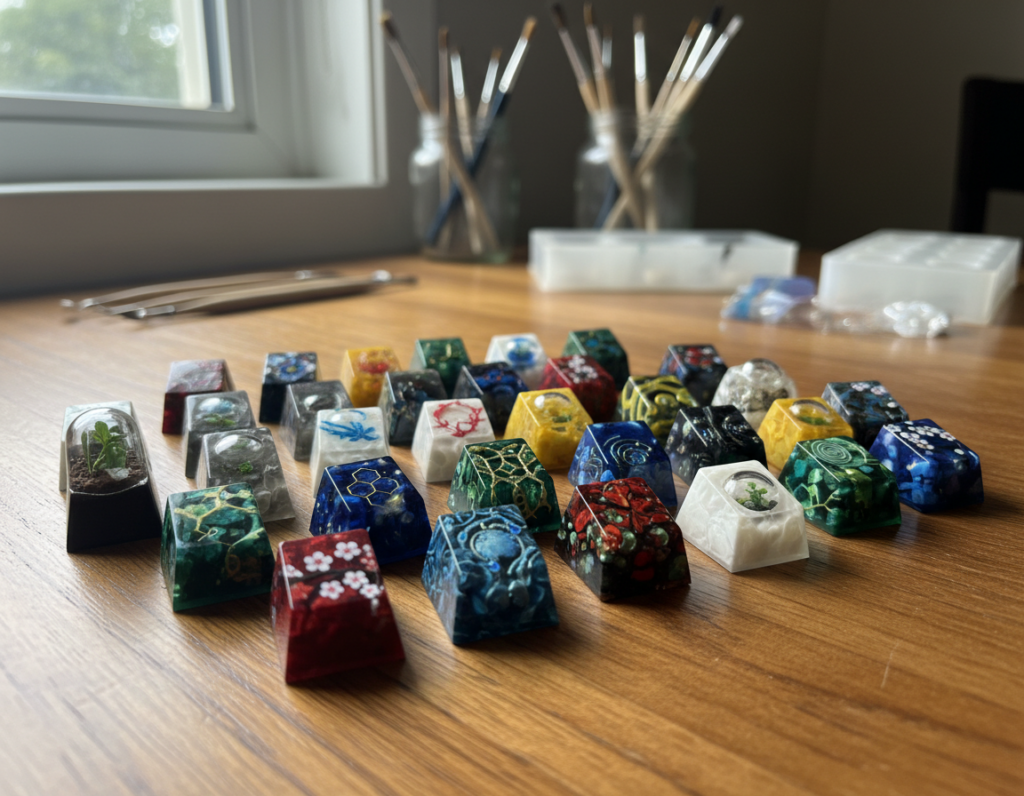
Classic terminal aesthetics combined retro cues with modern expectations. Think monochrome UIs, console hardware, and utilitarian finishes tuned for daily use. This guide focused on U.S. shoppers and explained what to compare when choosing a setup.
You’ll learn how to balance authentic looks with real performance. We previewed a buying framework—case feel, switch sound, legends, layout choices, and desk comfort—so readers could judge any product consistently.
We also highlighted why these looks stayed popular among developers, sysadmins, and long-form writers: they helped reading, comfort, and focus. A single limited-edition hero build was presented as inspiration, plus general recommendations you can apply to other keyboards.
Why Classic Terminal Aesthetics Still Influence Keyboard Design Today
The visual cues of early computing quietly inform today’s most functional desk gear.
What that look means now
High-contrast legends, muted palettes, and industrial finishes form a clear visual language. These cues show up on modern keyboards without feeling like a costume.
How nostalgia meets practical use
The past informs decisions that matter for daily work. Clear legends and focused colorways cut distractions and help you read keys fast in low light.
Why performance and feel matter
When your hands repeat the same keystrokes all day, comfort, sound, and clarity matter as much as the look. Programmability and hot-swap options let buyers keep modern convenience while leaning into a retro way of working.
Community and cohesion
Many others in the hobby match keyboard, cable, desk mat, and accessories to build a cohesive desk system. That uniform approach helps focus and keeps the workspace consistent over time.
Practical next step: Identify your must-haves—layout, sound, and materials—then pick the styling that fits those priorities.
What to Look for in terminal style mechanical keyboard setups
Start by matching the case and materials to how you work, not just how the desk looks.
Case and materials that match the era (and hold up over time)
Heavier cases feel more like console gear and resist daily wear. Look for solid metals and matte coatings for longevity.
Good machining and a durable finish keep the piece looking correct as it ages.
Keyboard layout choices
Decide ANSI vs ISO and whether you need a numpad. Compact layouts save desk space. Full-size layouts keep number keys handy for data work.
Split backspace and other enthusiast options help some workflows but can slow others.
Legends, switches, and sound
Choose high-contrast legends and consistent glyphs so keys remain readable in low light. Number keys should be easy to parse during late sessions.
Pick a switch that reduces fatigue and matches your typing speed. Stabilizers, plate fit, and foam change the “thock vs clack” balance.
Desk comfort essentials
Neutral wrist posture, a sensible typing angle, and a wrist rest lower strain over long sessions.
- Quick checklist: pick a layout, confirm legend readability, choose switch feel, then tune sound and ergonomics.
- For shopping ideas, see the best keyboards roundups.
Featured limited-edition terminal-inspired kit with a slider and knob
This limited run pairs vintage console cues with practical controls made for active workflows.
Collaboration and visual highlights: Designed with Max Voltar, the VG65 bundle ships with the MVKB Terminal knob, MVKB Terminal slider, and an exclusive VG65 sticker by @hellen. Priced at $495.00–$550.00 USD, the item positions itself as a centerpiece product for collectors who want authentic cues plus real function.
Controls that act like hardware
The rotary encoder and fader let you make fast changes without leaving home row. Map the knob to system volume, brush size, or timeline scrub. Use the slider for RGB brightness, music levels, or stream scene fades.
VIA and workflow ideas
Program the slider as a Layers Shift control to switch layers on the fly. Assign MIDI mappings for OBS, Twitch, Illustrator, Lightroom, or Blender to control volume and underglow brightness directly from the board.
Specs builders care about
- Case: Top and bottom Aluminum 6063 with included brass weight for solid heft.
- PCB: Custom 1.2mm hotswap PCB with underglow, ANSI/ISO support, split backspace, Kailh sockets, QMK/VIA, and a universal USB-C daughterboard.
- Plate: Run plateless or use the included polycarbonate plate; other plate materials sold separately.
Kit contents & pre-order notes
The kit includes top/bottom cases, brass weight, hotswap PCB, polycarbonate plate, foam dampening, gasket socks, screws, daughterboard, feet, rotary encoder and knob, fader encoder and handle, plus a QR build guide.
Typing feel meets terminal workflow: layouts, keystrokes, and efficiency
Small keystroke differences add up fast when your daily work runs in a shell or editor.
Why layout matters if you live in a command-line heavy day: repeated command patterns and navigation actions multiply tiny inefficiencies into thousands of keystrokes. A chosen keyboard layout shapes how often you reach, stretch, or twist while editing.
Workman layout takeaways: reduce lateral motion to protect the wrist
Workman focuses on the hand’s natural range instead of forcing keys into a single row. That reduces side-to-side motion and eases strain.
The “HE” bigram problem explained
OJ Bucao noted that the bigram “HE” ranks second in frequency. It appears in roughly 8,188 common words and about once every 26 keystrokes.
At 40 wpm, that lateral move can happen about eight times per minute. Over long sessions, these repeated motions can feel inefficient and tax the wrist.
Home keys vs home row: designing around natural reach
Home keys are the spots your fingers reach with minimal deviation. They may sit off the strict home row. Picking a layout that respects this range often lowers fatigue.
What Workman stats mean for buyers
- Middle-column use: QWERTY 22%, Colemak 12%, Workman 6% — fewer lateral reaches.
- Distance example: Don Quixote typing shows Workman ~29,656m vs Colemak ~30,352m — small savings that add up.
- Pinky load and balance: Workman reports ~9% right pinky load and near 50/50 hand balance for steadier long-term comfort.
Practical note: Test alternative layouts or borrow remaps and layers before switching full time. You can keep familiar habits while reducing awkward motions and improving efficiency.
Programming-first setup details: symbols, shift habits, and muscle memory
When your day is filled with braces and slashes, the number row becomes a performance zone, not just a label line.
Number row and symbols: choosing what’s fastest for code and commands
Symbols matter more in programming because punctuation appears far more often than in prose. Braces, brackets, and slashes change what “efficient” feels like for dev work.
Consider Workman-P as an example. It swaps top-row symbols and repositions braces to lower awkward reaches. You do not have to switch; use it as a reference for what to test.
Shortcut retention and remaps
Keep modifier clusters intuitive so your muscle memory survives a change. Remap sparingly and preserve common combos for copy, paste, and window management.
Layer planning for arrows, navigation, and commands
Build a dedicated navigation layer for arrows, Home/End, and PgUp/PgDn. This reduces hand travel and keeps you in flow while editing config files or reading logs.
Test one change at a time: try layout swaps, then layer rules, then symbol tweaks. Measure comfort and keystrokes to decide what truly improves your typing and work.
Build planning for a cohesive terminal-style desk setup
Start your build plan by treating the board as the visual anchor for every desk choice.
Method: choose the main keyboard first, then pick cables, mats, and wrist rests to match. This keeps finishes unified and avoids clashing metals or bright plastics.
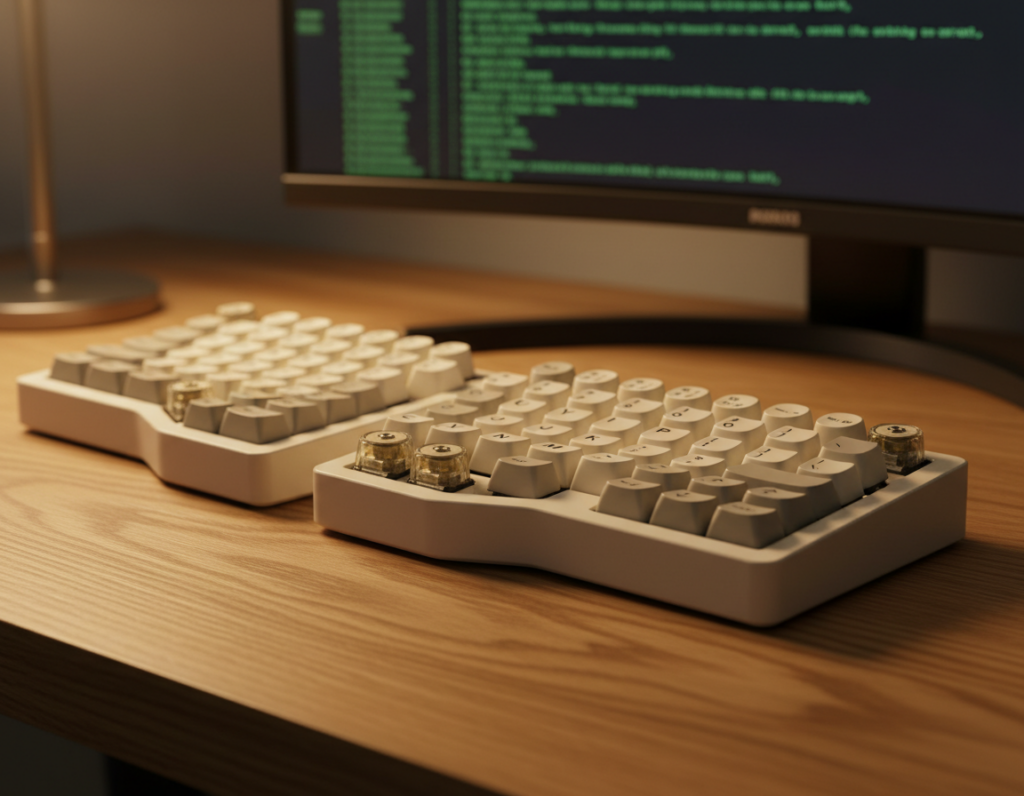
Color and finish matching
Favor muted neutrals and industrial tones with high-contrast legends. Match case finish to keycap tone so the overall design reads intentional, not pieced together.
Sound and feel tuning
Tune stabilizers first, then add foam to test resonance, and finally try plate swaps. This sequence keeps changes measurable and reversible.
- Stabilizers: reduce rattle under the spacebar and large keys—this helps the side that often bothers others most.
- Foam: lowers pitch and damps resonance; more foam equals quieter, softer thock.
- Plate: changes perceived stiffness and attack; choose brass or steel for firmer feel, poly or PC for mellower sound.
Buyer note: thoughtful tuning can make mid-range keyboards feel premium. Test one change at a time and measure results over several sessions.
Conclusion
Pick a desk piece you’ll still enjoy after long days of real typing. Start with the look you love, then validate the fundamentals: layout comfort, readable legends, and a sound profile that suits your room.
The best keyboard supports your actual habits — whether you keep stock simplicity or add layers and tuning. Treat visuals and function separately, then choose an item that satisfies both without overspending.
The limited-edition kit pairs console-like controls with solid build specs, making it a strong choice for US buyers who want form and function. If you want different keymaps, see examples of UNIX keyboards for home-row-focused layouts: UNIX keyboards.
Shortlist 2–3 options, compare layout and programmability, test comfort over several days, then pick the setup that fits your workflow better than the others.